Submodules
Last updated: March 2026
Use this page to add, update, initialize, and manage Git submodules in GitKraken Desktop when one repository needs to reference another repository at a fixed commit. It covers how the Submodules pane works, how pointer commits are updated, and where to configure automatic submodule updates.
Requirements and limits
- Workflow scope: Git submodules, not Git subtree workflows
- Pane access: Enable the Submodules pane from the Left Panel header menu
- Add workflow: Requires an HTTPS or SSH repository URL and a target path
- Clone behavior: GitKraken Desktop prompts you to initialize submodules when cloning a parent repository that includes them
- Pointer behavior: Updating the tracked commit changes the parent repo’s submodule pointer and
.gitmodulesreference state - Auto-update settings: Configure globally in Preferences > General or per repository in Preferences > Submodules
- Limitation: GitKraken Desktop does not support subtree workflows in-app
| Workflow | Supported in app | Notes |
|---|---|---|
| Show Submodules pane | Yes | Enable it from the Left Panel header menu |
| Add submodule | Yes | Requires repository URL and target path |
| Initialize submodules after clone | Yes | GitKraken Desktop prompts you when needed |
| Update submodule | Yes | Updates the tracked commit reference |
| Configure auto-update | Yes | Available globally or per repository |
| Git subtree workflow | No | Not supported in-app |
Quick Start
To show the Submodules pane: Right-click any Left Panel header and check Submodules.
To add a submodule:
- Hover over Submodules in the Left Panel and click the + icon.
- Paste the HTTPS or SSH repository URL and enter the desired path.
- GitKraken Desktop updates
.gitmodulesand references the submodule commit.
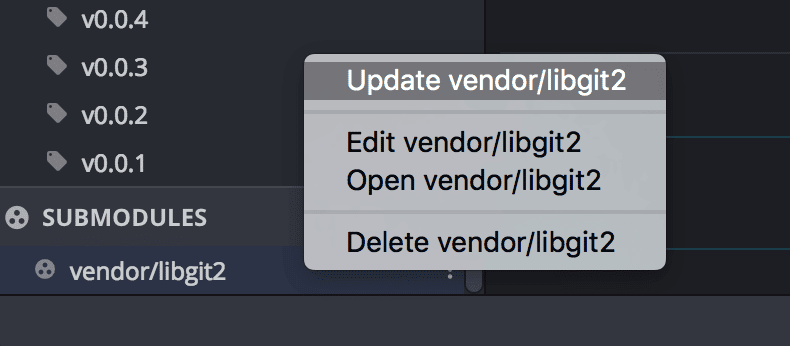
To update a submodule: Open the Submodules pane, right-click the submodule, and select Update to fetch its latest commit.
To change the tracked commit: Open the submodule in GitKraken Desktop, check out a new commit or branch, then exit the submodule. GitKraken Desktop will prompt you to save the updated pointer.
To enable automatic updates: Go to Preferences > General to update all repos globally, or Preferences > Submodules for per-repository settings.
When cloning a parent repository that includes submodules, GitKraken Desktop will prompt you to initialize them.
How to enable the Submodules pane
To toggle the Submodules pane:
- Right-click any pane header in the Left Panel.
- Check or uncheck “Submodules” to show or hide the pane.

How to add a submodule
To add a submodule:
- Hover over Submodules in the Left Panel.
- Click the icon.
- Paste the HTTPS or SSH repository URL.
- Enter the desired path.
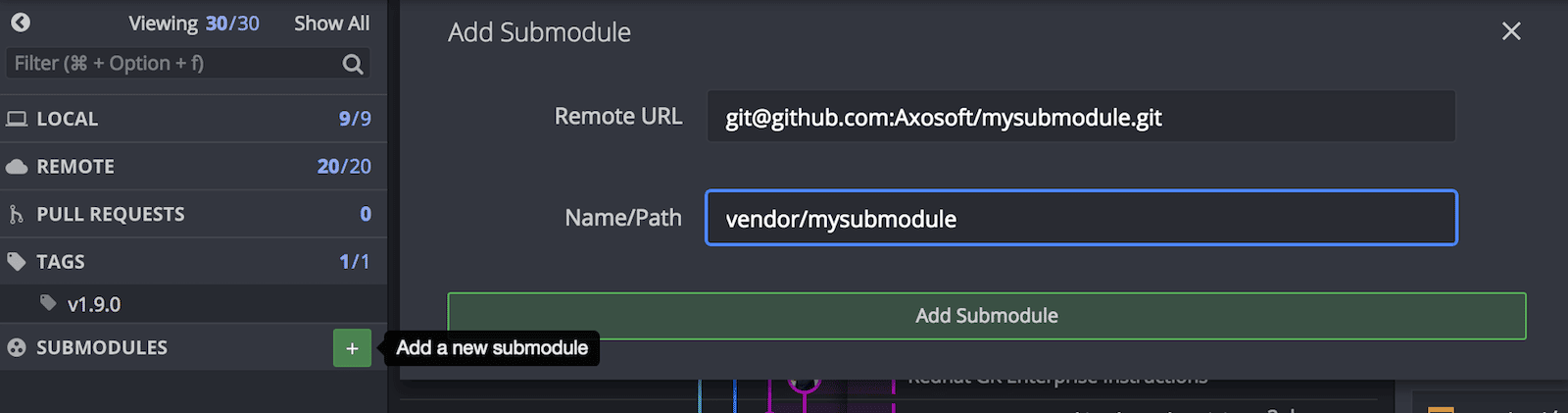
Adding a submodule updates the .gitmodules file and references the submodule commit.
When cloning the parent repository, you’ll be prompted to initialize the submodule to fetch and checkout its commit.
How to update a submodule
To update a submodule:
- Open the Submodules pane.
- Right-click the submodule.
- Select Update to fetch the latest commit.
When cloning a repository that includes submodules, GitKraken prompts you to initialize them.
How to change the pointer commit
To update the tracked commit:
- Open the submodule in GitKraken Desktop.
- Check out a new commit or branch.
- Exit the submodule to return to the parent repo.
GitKraken Desktop will prompt you to save the updated pointer commit.
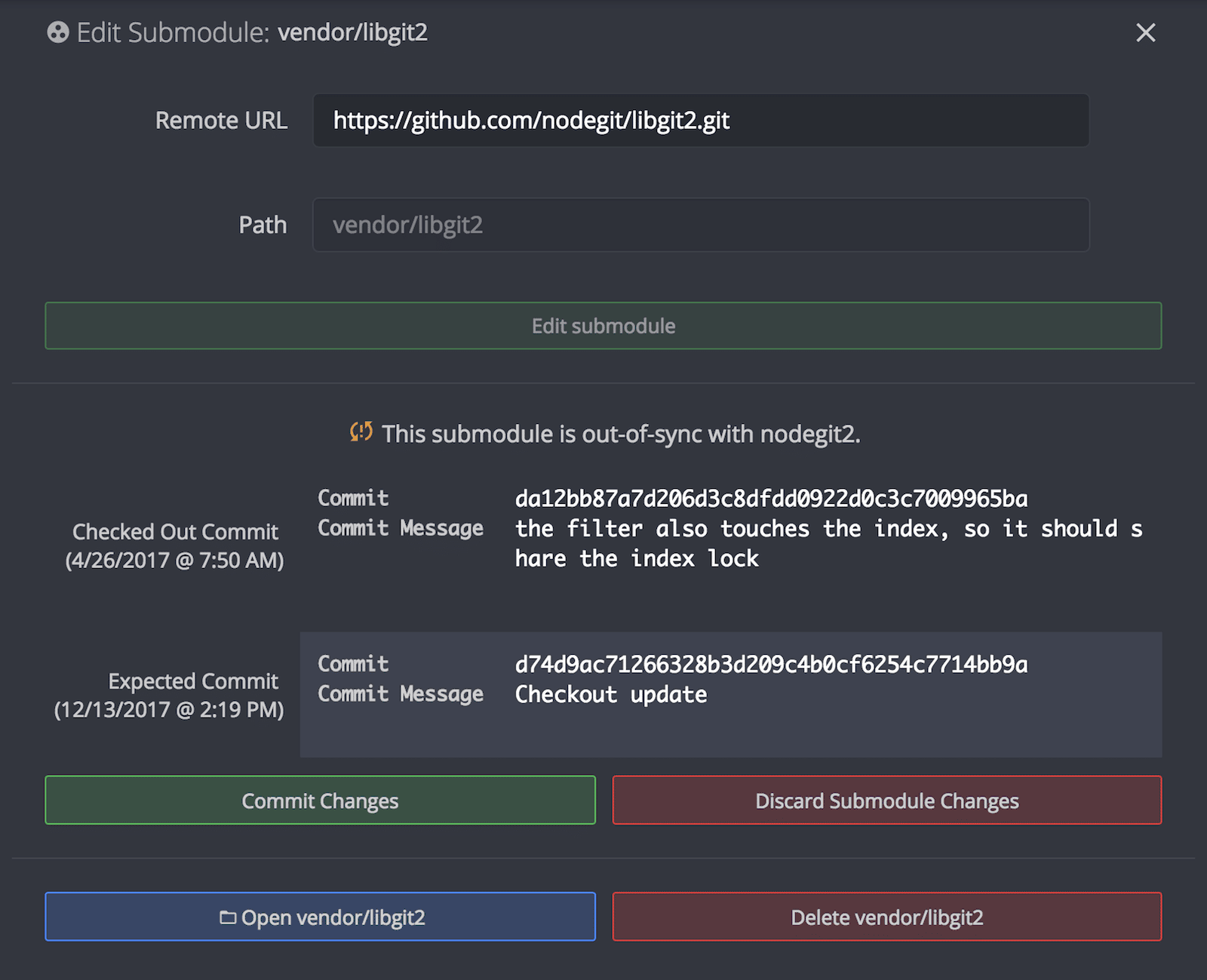
What submodule statuses mean
Possible submodule states and how to resolve them:
- Out of sync: The pointer commit changed. Stash, commit, or discard changes.
- Added but not initialized: Right-click and select Initialize.
- Added and initialized but not committed: Commit the submodule folder and update
.gitmodules.
How to keep submodules up to date
Enable automatic submodule updates:
- Globally: Preferences > General
- Per repository: Preferences > Submodules
Subtree support
GitKraken Desktop does not support subtree workflows in-app.